• Compatible with Windows and Macintosh OSX straight from the box
• Integrated error checking decoder
• True plug and play.No drivers required
• Light ergonomic design
• Reads direct to cursor position when plugged into USB or Serial port
• Robust and Easy To Use
• Reads all standard barcode types
• For use in industrial, retail, office and other applications
• 1 Year Warranty
• FREE Asset, Item and Loan Software
QuickUses
• Retail
• Healthcare and Medical
• Inventory and Stock Control
• Office Automation
• Document Tracking
• Light Industrial
• Asset Tracking
• Item Tracking
• Library Applications
• Goods Receiving
• Goods Shipping
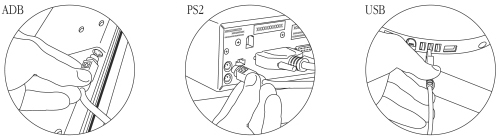
Turn off the power on your computer (unless you have a USB connection, when this is not necessary).
Connect your swift III Bar Code Reader to a spare USB port on your computer.
• Do not plug USB connections into the keyboard. The keyboard does not have enough
power to power the reader and damage may occur. If you are using the Windows 95
operating system you may be required to install additional software from your
Windows 95 system installer disc.
• Do not plug ADB connections between the keyboard and the computer. This will disable the
keyboard power switch. Always connect the reader between the keyboard and the mouse.
• Do not plug Keyboard Wedge (PS2) connections into the mouse port. Always connect the
reader between the keyboard and the computer.
Turn on the computer. The reader will beep to indicate that it is being initialised.